Save / organize custom materials
Hello [ Customer Name ],
The best way to organize your modified and imported materials would be to save it to "My library"
Here's an example:

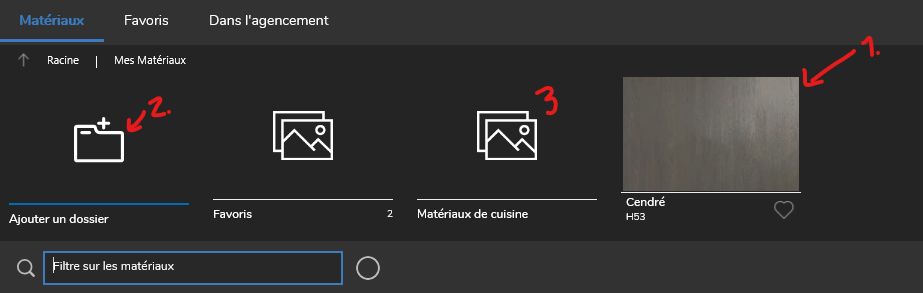
Then you'll find it in "My Materials" that you can find on the Material's Root:

Finally,
it can be a good thing to organize the "My Materials" folder by adding
few subfolder and drop the materials in these. Then, you'll also be able
to easily find the modified (or imported) custom Materials that you did with the search field.

Bonjour,
La meilleure façon de le faire serait de le sauvegarder dans "Ma bibliothèque".
Voici un exemple :
La meilleure façon de le faire serait de le sauvegarder dans "Ma bibliothèque".
Voici un exemple :
La première étape est d'ajouté le matériau à sa librairie :
Ensuite, vous le trouverez dans "Mes Matériaux" que vous pouvez trouver sur la Racine des Matériaux.
Enfin, ce peut être une bonne idée d'organiser le dossier "Mes
Matériaux" en ajoutant quelques sous-dossiers et en y glissant les
matériaux. Ainsi, vous pourrez retrouver facilement les matériaux
personnalisés modifiés (ou importés) que vous avez créés, entre autre,
avec l'utilisation de la barre de recherche.
Related Articles
2020 missing materials
If a user from 2020 asks why the materials are missing, place the textures of the .dae file at the root of the .zip, along with the Collada (.dae) file. Zip it and send it to Spaces. In other words, do not put the images in a sub-folder named ...Install VORTEK Spaces on a new computer
Download the software from the Microsoft Store. Search for VORTEK Spaces and click "Get" Log in with your username and password created upon receipt of the email with the subject: License Activation for VORTEK Space. Give VORTEK Spaces time to ...Cloud setup for VORTEK Spaces
Hi [ Customer Name ], Here's the way to share you work with your team. From your computer: For .vok file from Cabinet Vision, Sketchup, Mozaik, 2020, etc..., make a cloud folder ( Onedrive, googleDrive, Dropbox, etc..) on your computer : ex.: Export ...Z-Fighting Cabinet Vision
When you notice material flashing in VORTEK from a Cabinet Vision project, it typically indicates that the material thickness is set to zero. To address this, check your material schedule to ensure that all materials have specified thicknesses. For ...